Connect your Trendyol store
Create an integrator key in Trendyol Seller Center, paste it into Datomy, and your sales, payouts, listings and orders start arriving on their own. A couple of minutes, done once.
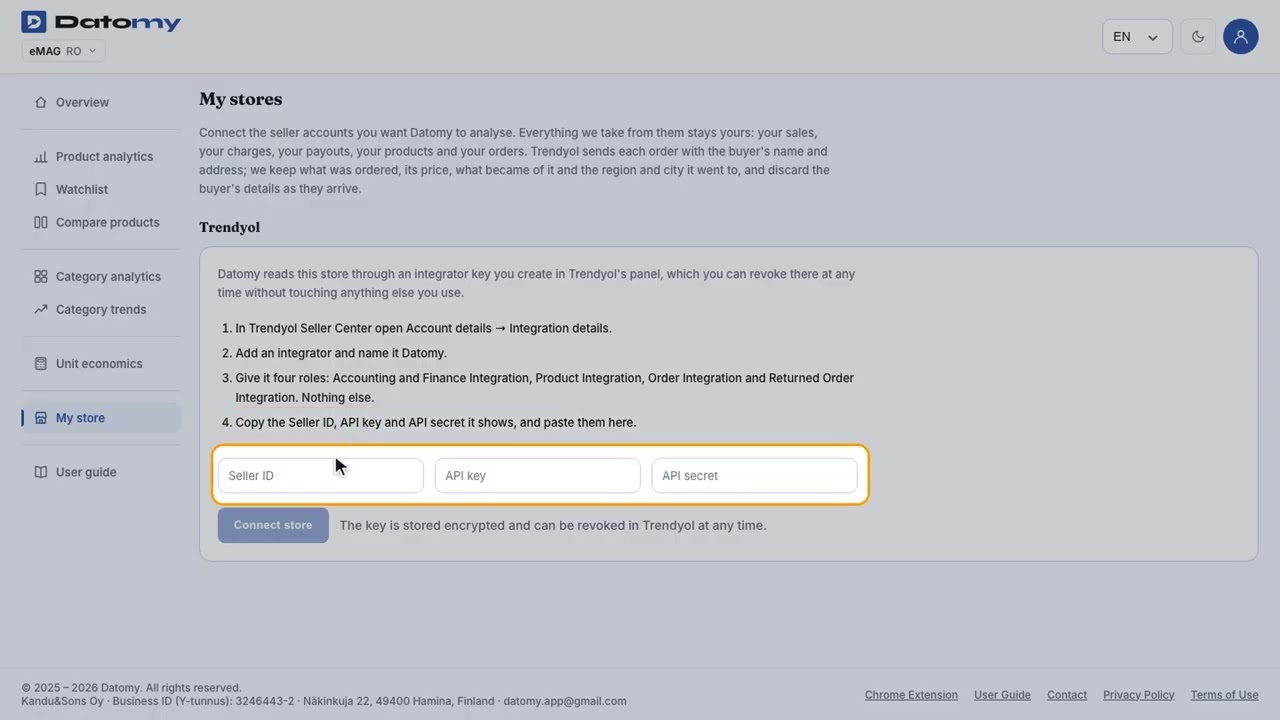
Connecting a store takes a couple of minutes and you do it once. After that Datomy reads your store by itself: the money every few hours, your listings once a day and your orders every hour.
What Datomy keeps
Your sales, charges, payouts, products and orders stay yours, and only you see them. Trendyol sends each order with the buyer's name and address. Datomy keeps what was ordered, its price, what became of it and the region and city it went to, and discards the buyer's details as they arrive.
Datomy reads your store through an integrator key: a key you create for Datomy in Trendyol's own panel. You can revoke it there at any time without touching anything else you use.
1. Create the key in Trendyol
- In Trendyol Seller Center open Account details → Integration details.
- Add a new integrator and name it Datomy, so you always know which key is ours.
- Give it four roles: Accounting and Finance Integration for your money, Product Integration for your listings, and Order Integration with Returned Order Integration for your orders and returns. Nothing else is needed.
- Trendyol shows three values: your Seller ID, an API key and an API secret. Keep the page open.
2. Paste it into Datomy
Open My stores from the account menu, or press Connect a store on the Overview. Paste the Seller ID, the API key and the API secret into the three fields. The secret is hidden as you type, and no screen in Datomy ever shows it again. The key is stored encrypted.
Press Connect store. Datomy checks the key with Trendyol and finds every country your store sells in: one Seller ID covers all of them, for example Romania, Greece and Bulgaria.
3. The first read
Datomy takes you straight to the store's dashboard and starts the first read at once: the last ninety days of sales, returns and payouts, then your listings and your orders. It usually takes a few minutes, longer for a large store. You do not have to wait on the page. Close it, and the figures fill in on their own.
While it runs, enter what your goods cost on the Costs tab. It is the one number Trendyol does not know, and Datomy shows a profit only where a cost is entered.
The store's card
Back on My stores, each connected store has a card with its Seller ID and countries, and three tiles, one per read: Finance, Products and Orders. Each tile says when it was last read, how many records Trendyol sent and how many of them were new.
- Green means all is well.
- Red means Trendyol is refusing that part, usually because a role is missing on the integrator. The tile names the role to add; add it in Trendyol and press Check again.
- Update now reads the store straight away rather than at its next turn.
- Settings switches any of the three reads off and replaces the key when you reissue it in Trendyol. The store and everything read from it stay.
- Disconnect removes the store and everything Datomy read from it.