Plan versus fact
Set your own monthly plan for each product and see, column by column, how much of it the store has done: at the end of a month, or on any day of it.
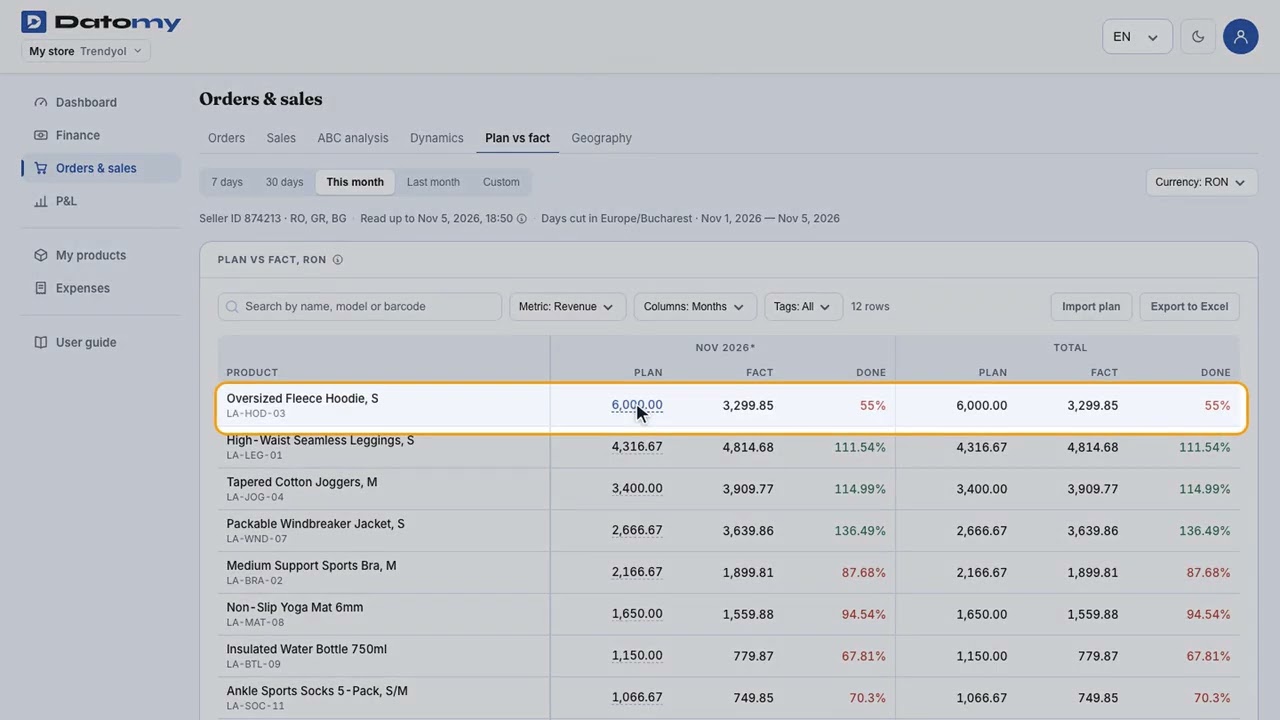
Plan versus fact puts your own plan for each product next to what really happened. It answers the question every seller asks at the end of a month: did we hit the plan, and where did we not? You find it in the sidebar under Orders & sales, on the Plan vs fact tab.
Plan, fact and done
Each row is a product model. Each period has three columns: Plan, the plan you set; Fact, what happened; and Done, the fact as a share of the plan. Done turns green when a product reached its plan and red when it fell short. The Total columns at the end cover the whole range picked above the table.
A plan is always set for a whole month. When the range covers only part of a month, as 30 days usually does, the column is marked with a star and its plan is the month's plan for those days only. Half a month is judged against half a plan, not against all of it.
To judge a month as a whole, pick Last month. Then start with the reds, the products furthest from their plan, and look at the greens that beat it by the most.
Setting a plan
Click a product's plan cell in a month column, type the plan for the whole month and press Enter. Escape leaves the cell as it was, and an empty cell clears the month.
In the current month the plan column shows its share for the days so far, so on any day you can see whether you are on track. The figure you type is still the whole month's.
Which figure you plan
The Metric menu above the table chooses what the plan is about:
- Items ordered and Ordered for: what buyers ordered, by the day they ordered it.
- Revenue and Items sold: what Trendyol settled, by the day of the sale.
- Left after your costs: what a sale left after Trendyol's commission and your own costs of goods and packaging, so it needs your costs entered.
- Margin: the same as a percentage.
Each metric keeps its own plans, and so does each currency. Plans are stored with your account per model and month, so they stay even if you reconnect the store.
Importing many plans at once
Press Import plan and paste lines from a spreadsheet: the model code, the month and the figure, separated by tabs as a spreadsheet copies them, or by semicolons. The month can be written as 2026-12 or as any date inside it. The figures go to the metric chosen in the menu.
Before you save, the window counts the lines it read and shows the ones it skipped, so a mistyped month does not slip through. A model code that is not in the store is named after saving.
Weeks
Switch Columns to Weeks to follow a month as it goes. A week's plan is the month's plan shared out by days, and a week that crosses two months takes its days from each. Plans cannot be typed in week columns; switch back to Months to change them.
Export to Excel saves every row that matches the search and the tags, not just the page on screen.